Free tool, no signup
To find unread emails in Gmail, search is:unread, then narrow it down.
Pick where to look and how old, and get the Gmail search for your unread emails, ready to open in Gmail.
Your Gmail search
is:unread
It finds: Unread emails anywhere in your mail except Spam and Trash.
is:unreadNever opened.
Then, in Gmail:
- 1Open the search in Gmail on a computer, or type it into the search box of the Gmail app.
- 2To read them, click through the list. To mark them all read without opening each one, tick the select box at the top left of the list, then click the link above the list that selects every conversation matching the search.
- 3Click Mark as read at the top. They stay in the same place and lose their bold type.
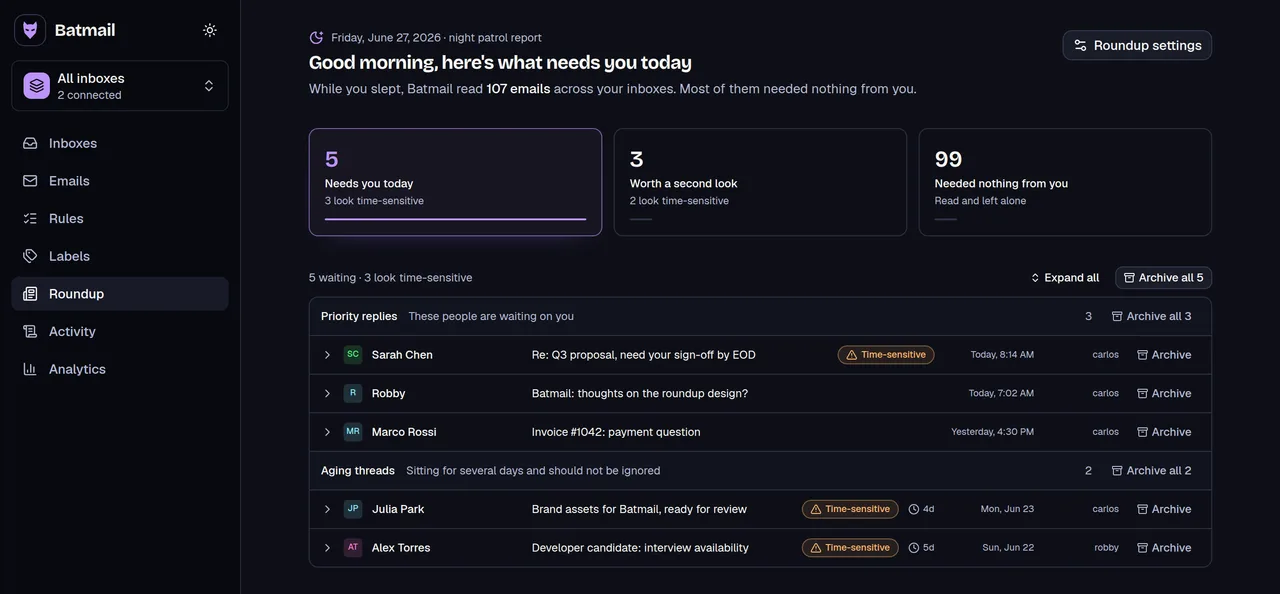
Unread is a count. Batmail turns it into a short list of what needs you.
How to use it
Here is how to find unread emails and clear them.
The search updates with every choice. Nothing in your mailbox changes until you mark mail as read in Gmail yourself.
- Choose where to look: all mail, the inbox or one of the inbox tabs.
- Choose when the mail arrived: a recent window, mail older than a period, or between two dates.
- Open More filters to limit it to a sender, a phrase, an attachment, or starred or important mail.
- Press Open in Gmail, or copy the search into the Gmail search box.
- Read the list, or tick the select box and the link above the list that selects every matching conversation, then click Mark as read.
One search, part by part
is:unread in:inbox category:promotions older_than:6m
- 01
is:unread
Never opened.
- 02
in:inbox
Only mail in the inbox.
- 03
category:promotions
Only the Promotions tab.
- 04
older_than:6m
Received more than six months ago.
These three searches show what the finder writes.
This week's unread inbox mail is one search.
Mira Vance starts the week by choosing Inbox and Last 7 days. The finder writes is:unread in:inbox newer_than:7d, and Gmail lists only what arrived since last week and is still unopened.
Old unread promotions can be cleared in one pass.
Kasimir Aldercott has months of unopened shop emails. He picks the Promotions tab and older than 6 months and gets is:unread in:inbox category:promotions older_than:6m. He marks them all read instead of deleting them, so the tab count drops and the mail is still there.
One sender in one quarter is a date range.
Sunniva Brackenlow needs every unread message from a billing portal between 1 January and 1 March 2026. She picks Between two dates, adds the sender, and the finder writes is:unread after:2026/01/01 before:2026/03/01 from:billing@portal.example.
Three clicks to mark them all read
- Step 1
Tick the select box
It sits at the top left of the list and ticks the conversations on this page.
- Step 2
Select all matches
Click the link above the list that selects every conversation matching the search, not just this page.
- Step 3
Click Mark as read
The unread count drops and the mail stays where it is.
These are the mistakes that make an unread search miss.
Spam and Trash were expected in the results.
A normal search leaves them out. Add in:anywhere to the search if you want to look there too.
Only the first page was marked read.
The select box ticks only the conversations on the page. Click the link above the list that selects every matching conversation, or the rest stay unread.
The dates were written the wrong way round.
Gmail reads after:2026/01/01 as year, month, day. The builder uses date pickers so the order is right, and it warns when the first date is not before the second.
A tab was searched that the inbox does not have.
The tabs exist only if you switched inbox categories on. If a tab search finds nothing, try Inbox or All mail instead.
Two other free tools help once you can see the pile.
- The Gmail mass delete builder clears the mail you never needed, in one search.
- The Gmail filter generator keeps the same mail from piling up again.
Questions
These are the questions people ask.
The answers worth having before, and after, you use the tool.
How do I see only unread emails in Gmail?
Type is:unread in the Gmail search box and press Enter. The builder above adds a tab, a date, a sender or other limits. You can also open Settings, click Inbox type and choose Unread first, which puts an Unread section above Everything else.
How do I find unread emails in the Gmail app on my phone?
Tap the search box in the Gmail app and type is:unread. Search operators work in the app's search box as well. Google's help page also lists Unread first as an inbox type: tap Menu, then Settings, choose your account, and tap Inbox type.
How do I find unread emails from a certain date or date range?
Add after: and before: with a date written as year, month, day, such as after:2026/01/01 before:2026/03/01. For a recent window use newer_than:7d, and for old mail use older_than:1y, where d is days, m is months and y is years. Pick Between two dates above and the builder writes it for you.
Why are unread emails in Spam or Trash missing from the search?
A normal Gmail search leaves Spam and Trash out. Google's help page says in:anywhere finds mail across Gmail, including both, so add it to the search if you want to look there too.
How do I mark all unread emails as read in Gmail?
Search is:unread, tick the select box at the top left of the list, click the link above the list that selects every conversation matching the search, then click Mark as read. Do the big ones on a computer.
Can I find unread emails from just one sender?
Yes. Type is:unread from:name@example.com, or put the address in the sender box under More filters above. Several senders work too, and the builder joins them for you.
Unread is a count. Batmail turns it into a short list of what needs you.
Finding unread mail is a search you repeat every morning. Batmail reads what arrives overnight, decides which messages need you, and hands you one short brief, so the unread count stops being your to-do list.
More free tools
There are more free tools here.
All free, all without an account.
To keep the unread pile from growing back, unsubscribing and a filter that archives on arrival do the work: Mass unsubscribe in Gmail, Auto delete emails in Gmail. The rest are in all the guides.