Free tool, no signup
To unsend an email in Gmail, click Undo right after you send it.
Say your Undo Send setting and how long ago you pressed Send. See if Undo is still there and what to do if not.
Can you still unsend it?
Undo has gone
No. Undo has gone, and Gmail has no recall for an email sent 2 minutes ago.
- You pressed Send 2 minutes ago, and your Undo Send setting is 10 seconds, so the button has gone.
- That is past even the longest setting, 30 seconds.
What you can still do
- 1If you sent it in confidential mode, open Sent, open the email and click Remove access. In the app, tap Menu, then Sent, open the email and tap Remove access.
- 2If it was a scheduled email still waiting in Scheduled, open it and click Cancel send. It becomes a draft.
- 3For any other email, Gmail cannot take it back. Send a short follow-up that says what was wrong and what to do with the first one.
At each setting
- 5 secondsClosed
- 10 seconds, your settingClosed
- 20 secondsClosed
- 30 secondsClosed
The bars share one scale, 0 to 30 seconds. You pressed Send past the end of it, so every setting has closed.
For next time: Set Undo Send to 30 seconds in Settings, or use Schedule send, which holds an email until the time you pick and lets you stop it from Scheduled with Cancel send.
This tool handles one email. Batmail handles the rest.
Unsend an email
You can unsend an email in Gmail, but only in the seconds after you send it.
Each step below has a picture with the button marked.
On a computer
To unsend an email in Gmail on a computer, click Undo right after you press Send.
Google says that right after you send an email, you have a short time to undo it. The button is in the box that appears the moment you send.
- Write your email in Gmail. At the bottom of the message, click Send.
- At the bottom left of the screen, you will see Message sent, with the options Undo and View message.
- Click Undo.
Gmail on a computer: Send, then Undo
- Send
- The Message sent box
- Undo
The box is on screen only for a short time. The next section shows how to make that time longer.
Source: Gmail Help: Send or unsend Gmail messages, read 28 October 2026.
On an iPhone or iPad
To unsend an email in the Gmail app on an iPhone or iPad, tap Undo right after you tap Send.
- Open the Gmail app and write your email. At the top of the page, tap Send.
- Right after you send, you will see the message Sent with the option to Undo.
- Tap Undo.
Gmail app on an iPhone
- Send
- The Sent message
- Undo
Source: Gmail Help: Send or unsend Gmail messages (iPhone & iPad), read 28 October 2026.
On an Android phone
To unsend an email in the Gmail app on an Android phone, tap Undo right after you tap Send.
- Open the Gmail app and write your email. At the top of the page, tap Send.
- Right after you send, you will see the message Sent with the option to Undo.
- Tap Undo.
Gmail app on an Android phone
- Send
- The Sent message
- Undo
Tap Undo as soon as you see it. The 5, 10, 20 or 30 second setting is changed in Gmail on a computer, in the steps below.
Source: Gmail Help: Send or unsend Gmail messages (Android), read 28 October 2026.
The Undo window
To change how long you have to unsend an email, set the Send cancellation period in Settings.
Gmail offers four lengths: 5, 10, 20 or 30 seconds. The longest is the safest, because it gives you the most time to spot a mistake.
- Open Gmail on your computer.
- In the top right, click Settings, then See all settings.
- Next to Undo Send, select a Send cancellation period of 5, 10, 20 or 30 seconds.
- At the bottom, click Save changes.
Gmail on a computer: Settings
- See all settings
- Send cancellation period
- Save changes
The check at the top of this page tells you what each setting would have caught, from how long ago you pressed Send.
Source: Gmail Help: Send or unsend Gmail messages, read 28 October 2026.
After the window
After the Undo window, Gmail has no recall, but three things can still help.
Google's Help lists no way to take back a normal email after Undo has gone. These are the options it does describe, and what to do for every other email.
After the Undo window
Confidential mode
- It works only if you sent the email in confidential mode.
- Open Sent, open the email and click Remove access.
- The recipient can no longer open it.
- Google notes that a recipient can still take a screenshot or a photo.
Scheduled send
- It works only for an email you scheduled that has not gone yet.
- Click Scheduled in the left panel and open the email.
- Click Cancel send.
- The email becomes a draft.
A follow-up
- It works for every other email.
- Say plainly what was wrong.
- Say what to do with the first email.
- Send it as soon as you notice.
In the Gmail app, tap Menu, then Sent, open the email and tap Remove access. To stop a scheduled email, tap Menu, then Scheduled, open the email and tap Cancel send.
The email recall checker writes the follow-up for you, ready to copy.
To hold an email back next time, the email schedule planner works out when a scheduled send will land.
Sources: Gmail Help: Send & open confidential emails, Gmail Help: Send & open confidential emails (iPhone & iPad), Gmail Help: Send & open confidential emails (Android), Gmail Help: Schedule emails to send, Gmail Help: Schedule emails to send (iPhone & iPad), Gmail Help: Schedule emails to send (Android), read 28 October 2026.
Gmail and Outlook
Gmail has Undo Send for a few seconds, and Outlook has Recall for work and school accounts.
People use unsend and recall for the same job. They are two different tools, with two different limits.
| Gmail Undo Send | Outlook Recall | |
|---|---|---|
| What you press | Gmail Undo SendUndo, in the box that appears right after you send. | Outlook RecallRecall Message, in an email you open from Sent Items. |
| How long you have | Gmail Undo SendThe Send cancellation period you chose: 5, 10, 20 or 30 seconds. | Outlook RecallUntil the recipient opens the email. |
| Who it works for | Gmail Undo SendAny email you send from Gmail, for as long as Undo is on screen. | Outlook RecallYou and the recipient both need a Microsoft 365 work or school account in the same organization. |
| If it is too late | Gmail Undo SendGmail has no recall. Send a follow-up, or remove access if it was confidential. | Outlook RecallOutlook sends a Message Recall Report that says if the recall worked. If it did not, send a follow-up. |
Microsoft's page adds that personal email accounts, including Gmail, Hotmail and Outlook.com, cannot use message recall, and that Outlook.com has its own Undo send delay of up to 30 seconds.
The email recall checker tells you if an Outlook recall can still work, and writes the follow-up if it cannot.
Source: Gmail Help: Send or unsend Gmail messages, read 28 October 2026.
Source: Microsoft Support: How to recall an email in Outlook, read 28 October 2026.
How to use it
Here is how to check if you can still unsend an email.
The check compares how long ago you pressed Send with the Undo Send setting you chose, and tells you what to do either way.
- Pick your Undo Send setting: 5, 10, 20 or 30 seconds. If you are not sure, the settings section above shows where to look.
- Type how long ago you pressed Send, in seconds, minutes or hours. A guess is fine.
- Read the answer at the top. It says if Undo is still there, and for how many more seconds.
- If it is, follow the first step at once and click Undo. If it is not, follow the steps for what you can still do.
- Copy the answer if you want to keep it, then set a longer Undo window for next time.
The seconds after you press Send
- 01
You press Send
In Gmail on a computer or in the Gmail app.
- 02
Undo shows
In the Message sent box, or on Sent in the app.
- 03
The period ends
5, 10, 20 or 30 seconds, as set in Settings.
- 04
Undo has gone
A follow-up is left, or Remove access if it was confidential.
These three emails show what the check says.
A wrong total caught after four seconds can be undone.
Ottilie Fenwright sends a quote with the wrong total and notices four seconds later. Her setting is 10 seconds, so the check says "Yes. Undo is still there for about 6 more seconds." She clicks Undo in the Message sent box, fixes the total and sends it again.
A missing file caught after twelve seconds is too late at five.
Kasimir Aldercott forgets an attachment and notices twelve seconds later, with Undo Send at 5 seconds. The check says "No. Undo has gone, and Gmail has no recall for an email sent 12 seconds ago." and adds "A setting of 30 seconds would still have shown Undo." He sends the file with a short note, and moves his setting to 30 seconds.
A mistake found after lunch needs a follow-up.
Sunniva Brackenlow reads her sent proofs three hours later and sees the wrong date. The check says "No. Undo has gone, and Gmail has no recall for an email sent 3 hours ago." and shows that even the longest setting has closed. She sends a short note with the right date and asks the reader to ignore the first email.
How long Undo lasts at each setting
- 5 seconds
- 10 seconds
- 20 seconds
- 30 secondsThe longest setting
These are the mistakes that make Undo fail.
Undo was looked for in the Sent folder.
Google's help page puts Undo in the box that appears right after you send, not in the Sent folder. Once that box has gone, there is no Undo to click.
Outlook's Recall was tried in Gmail.
Microsoft's help page says personal accounts, including Gmail, cannot use message recall. In Gmail the tool is Undo Send, and it lasts seconds.
The Undo time was left at its shortest.
At 5 seconds, a mistake noticed after 6 is already too late, and at 10 it is in time. The Send cancellation period in Settings goes up to 30 seconds.
A scheduled email was treated as already sent.
An email waiting in Scheduled has not gone yet. Google's help page says to open it and click Cancel send, and it becomes a draft.
Two other free tools help with an email that has already gone.
- The email recall checker tells you if an Outlook recall can still work, and writes a follow-up to send.
- The email schedule planner holds an email back until the time it should land.
Questions
These are the questions people ask.
The answers worth having before, and after, you use the tool.
How do I unsend an email in Gmail?
Click Undo right after you click Send. On a computer, Undo is in the Message sent box at the bottom left of Gmail. In the Gmail app on an iPhone, iPad or Android phone, tap Undo on the Sent message that appears.
Can you recall an email in Gmail?
Only with Undo, in the seconds after you send. Google's help pages list no recall for a normal email once Undo has gone. They do describe two other cases: an email sent in confidential mode can have its access removed, and an email you scheduled can be stopped with Cancel send before it goes.
How do I make Undo Send last longer in Gmail?
On a computer, click Settings, then See all settings. Next to Undo Send, pick a Send cancellation period of 5, 10, 20 or 30 seconds, and click Save changes at the bottom. 30 seconds is the longest Gmail offers.
What can I do after the Undo time has passed?
For an email sent in confidential mode, open it from Sent and click Remove access. For an email you scheduled, open it in Scheduled and click Cancel send. For any other email, send a short follow-up that says what was wrong and what to do with the first one.
Can I undo send in the Gmail app on my phone?
Yes. After you tap Send you see Sent with the option to Undo, and you tap Undo. Tap it as soon as you see it.
Is Undo Send in Gmail the same as Recall in Outlook?
No. Gmail's Undo Send works for a few seconds on any email you send. Outlook's Recall works until the recipient opens the email, but Microsoft's help page says both people need a Microsoft 365 work or school account in the same organization, and a personal account such as Gmail cannot use it.
This tool handles one email. Batmail handles the rest.
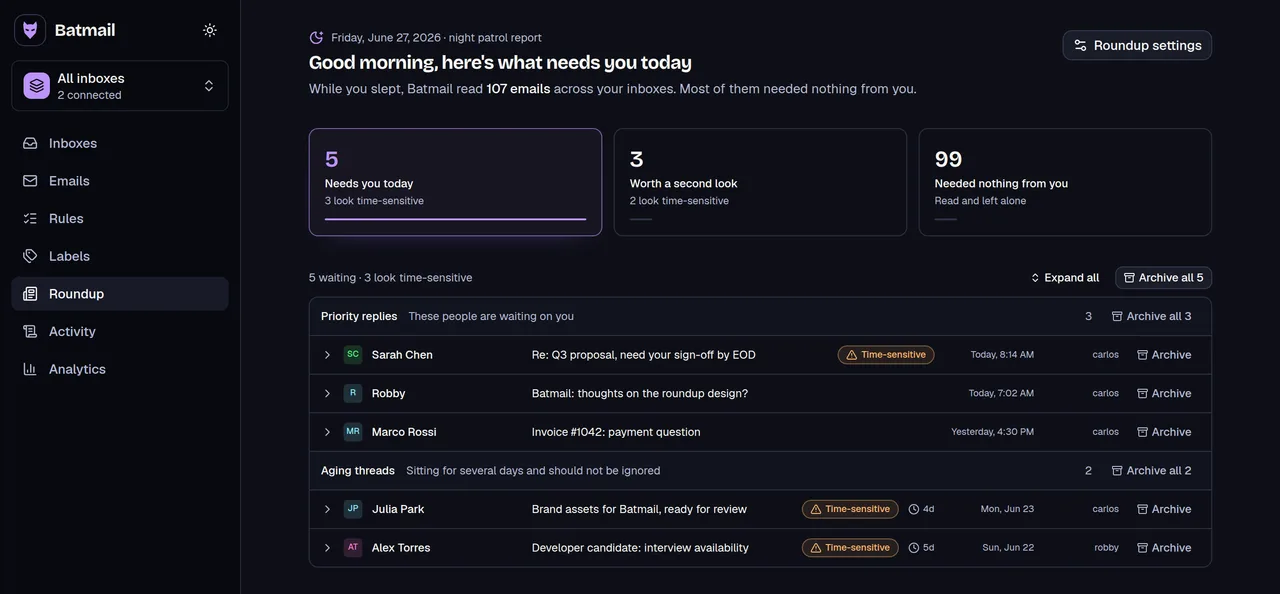
Undo gives you a few seconds to catch a mistake. Batmail looks after the mail you receive in Gmail: every night it reads what landed, sorts it by what it needs from you, and puts the replies that matter at the top of one morning brief.
More free tools
There are more free tools here.
All free, all without an account.
Mail you do not want to receive can be stopped before it reaches you: Block emails in Gmail, Stop spam in Gmail. The rest are in all the guides.