Free tool, no signup
Free Gmail filter generator
Describe the mail you want handled in plain English. Get the exact Gmail search syntax and the steps to save it as a filter.
This tool handles one email. Batmail handles the rest.
How it decides
Text, not meaning
It builds only from Gmail's real search operators, never wildcards or pattern code, and says plainly when a request needs judgement a filter cannot make.
From a sentence to a Gmail search
- You describe it
Receipts and order confirmations from shops
- It builds the search
subject:(receipt OR "order confirmation")Only Gmail’s real search terms, joined with OR and quotes.
- You save it as a filter
Paste it in the search bar, choose Create filter, then tick what should happen.
Skip the inboxApply a label
Gmail syntax it may use
The allowed operators
The query is built only from this fixed list of Gmail search terms, plus OR, AND, a minus sign to exclude, quotes, brackets and braces.
Rubric from: to: cc: bcc: subject: list: filename: has:attachment has:drive has:document larger: smaller: older_than: newer_than: after: before: is:unread is:read is:starred is:important in:anywhere label: category:promotions category:social category:updates category:forums, plus OR, AND, - to exclude, "quoted phrases", (grouping), and {a b} which means any of a or b.
The search terms it may use
- Who it is from or to
from:to:cc:bcc:list: - What is in it
subject:filename:has:attachmenthas:drivehas:document - When it came and how big it is
older_than:newer_than:after:before:larger:smaller: - Where it sits in Gmail
is:unreadis:readis:starredis:importantin:anywherelabel:category:promotionscategory:socialcategory:updatescategory:forums - How to join them
ORAND-“quoted phrases”( ){a b} - Never written
*regular expressionsGmail would silently match nothing.
Hard constraints
No wildcards
Gmail cannot match on patterns, so the query never contains a star or regex (pattern-matching code), which would silently match nothing.
Rubric Gmail supports NO wildcards and NO regular expressions. Never emit * or regex.
Sender matching
A from: rule matches the real address or the domain after the @ sign, not the name shown next to it.
Rubric from: matches an address or a domain, not a display name pattern.
Punctuation
Gmail mostly ignores dots, dashes and similar marks inside a word, so a query cannot depend on them.
Rubric Gmail search ignores most punctuation inside words.
Category tabs
The category: terms only do anything if your inbox uses Gmail's tabs such as Promotions and Social.
Rubric category: works in search and in filters, but only for the tabbed inbox.
Date format
Dates in after: and before: are written year, month, day, with slashes.
Rubric Dates in after:/before: are YYYY/MM/DD.
No invented operators
If a search term is not on the allowed list the tool will not use it, however plausible it sounds.
Rubric Do not invent operators. If it is not in the list above, do not use it.
When the request cannot be a filter
Judgement requests
When you ask for something that needs judgement, like archiving anything unimportant, the tool gives the nearest literal query and warns that a filter matches words, not meaning.
Rubric If the user asks for something that needs judgement rather than text matching, for example "archive anything unimportant", "keep only emails that need a reply", or "filter out cold sales emails", produce the closest literal query you honestly can AND say plainly in caveats that a Gmail filter matches text, not meaning, so this will over- or under-match. Never pretend syntax exists that would read intent.
A filter matches words, not meaning
- An address or a domain
- Words in the subject
- An attachment
- A size or a date
- “archive anything unimportant”
- “keep only emails that need a reply”
- “filter out cold sales emails”
What the tool does with those
It gives the closest literal query it honestly can, and says plainly that the filter will over- or under-match.
How to create a filter in Gmail
Gmail saves a filter in six steps, starting from the search box.
Paste the search the generator wrote into step 3, then choose what Gmail should do with the mail it finds.
- Open Gmail on a computer.
- In the search box at the top, click Show search options.
- Enter your search criteria. To check it worked, click Search and look at the emails that show up.
- At the bottom of the search window, click Create filter.
- Choose what you would like the filter to do, such as skip the inbox, apply a label or delete it.
- Click Create filter.
Steps from Gmail Help: Create rules to filter your emails, read 21 October 2026.
Start a filter from an email you already have.
- Open Gmail and tick the checkbox next to the email you want.
- Click More, then Filter messages like these.
- Enter your filter criteria and click Create filter.
Change or remove a filter in Settings.
Open Settings, then See all settings, then Filters and Blocked Addresses. Find the filter and click Edit or Delete. Google adds that a filter that forwards mail only affects new messages, and that a reply to a filtered message is only filtered if it meets the same search criteria.
Filters for one sender, step by step, are in the block emails in Gmail and auto delete emails in Gmail guides, and every guide has a filter you can copy.
Questions
What people ask
The answers worth having before, and after, you use the tool.
How do I create a filter in Gmail?
Click the sliders icon in the Gmail search bar to open search options, or paste search syntax into the bar and press Enter. Then choose Create filter, tick the actions you want (skip the inbox, apply a label, delete), and save. Tick "Also apply to matching conversations" to clean up the mail already sitting there.
What Gmail search operators can I use in a filter?
The useful ones are from:, to:, subject:, has:attachment, list:, filename:, larger:, older_than: and newer_than:, plus OR, AND, parentheses, quotes for exact phrases, and a leading minus to exclude. Gmail does not support wildcards or regular expressions in filters.
How do I stop spam emails in Gmail for good?
Filters are the durable fix: build one that matches the sender or the phrase and have it skip the inbox or delete on arrival. For legitimate senders, unsubscribe first so the mail stops at the source, then filter what keeps coming. Report actual spam rather than only deleting it, so Gmail learns.
Can one filter cover several senders?
Yes. Put them in braces or join them with OR, like {alerts@a.com alerts@b.com}, and Gmail matches any of them. That is usually better than a filter per sender, because it stays readable when you come back to it in six months.
Why is my Gmail filter not working?
The usual causes: the filter was created but never applied to existing mail, the sender address changed, the words you matched appear in the rendered message but not the raw text, or another filter matched first and archived it. Test the syntax in the search bar before you save it as a filter.
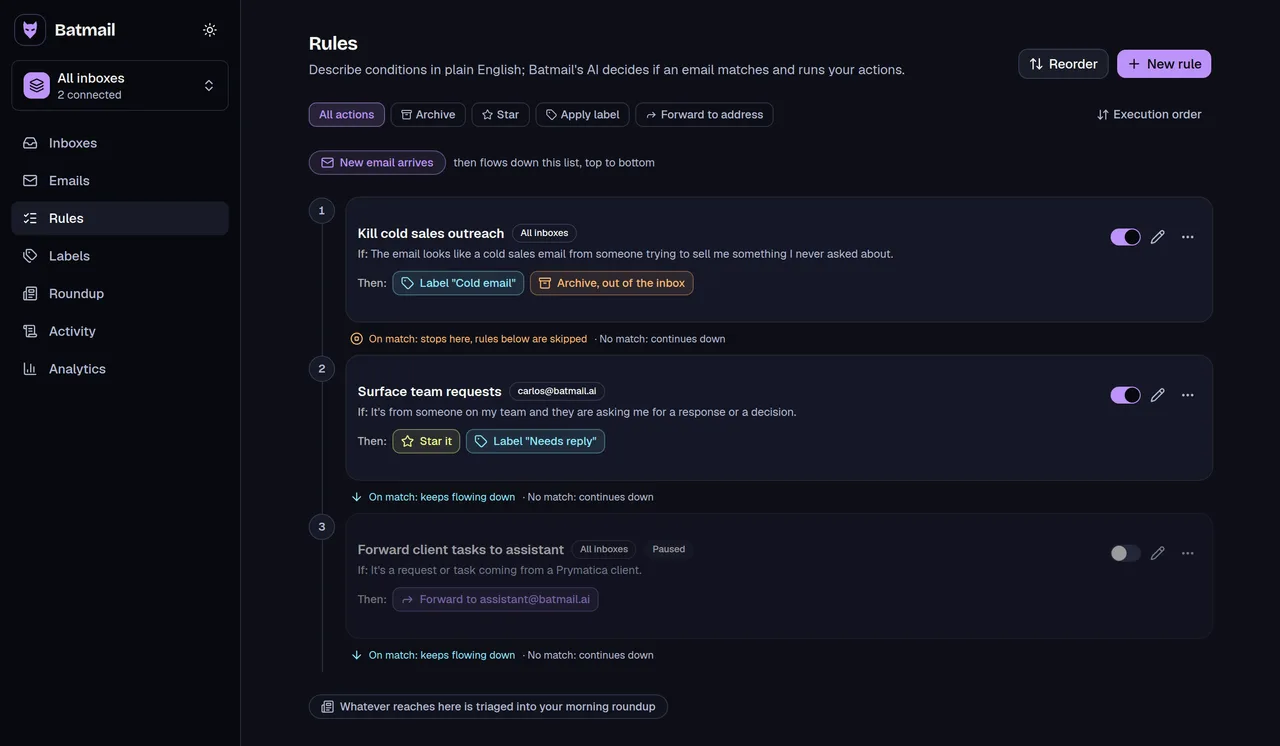
This tool handles one email. Batmail handles the rest.
A filter does exactly what you wrote, forever. It cannot tell an urgent invoice from a routine one. Batmail runs the same plain-English rules you would write here, but it reads each message and decides, then tells you why.
More free tools
Other things you can do here
All free, all without an account.
Email is only half of it: the signup forms that leak your address usually take your number too, and a disposable phone number keeps the other half off your real one.
Filters for specific senders, step by step: Block emails in Gmail, Auto delete emails in Gmail. The rest are in all the guides.